Batch Copying Windows Systems with U-Reach Duplicators
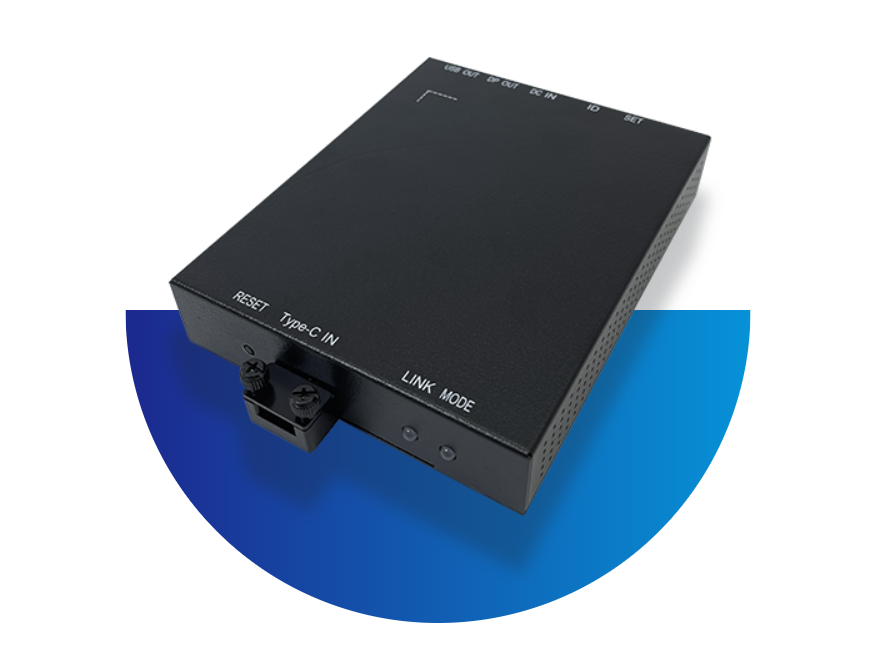
U-Reach duplicators, leveraging FPGA industrial-grade architecture, multi-channel parallel processing capability, and low-level signal direct output technology, can efficiently complete batch copying of Windows systems. Compatible with various interface hard disks such as SATA and NVMe (M.2), they are widely used in scenarios like batch computer assembly in electronics factories and enterprise IT deployment. Compared with traditional Ghost tools or manual installation, they offer advantages including offline operation, zero blue screen risk, and significantly improved efficiency.
I. Preparations: Hardware, Software, and Environment Adaptation
Before batch copying, it is necessary to complete equipment selection, master disk preparation, and environment inspection to avoid copy failures or system abnormalities due to compatibility issues.
1. Duplicator Selection: Matching Interface and Capacity Requirements
Choose the corresponding model based on the target hard disk type (SATA/NVMe) and batch size. Core recommendations are as follows:
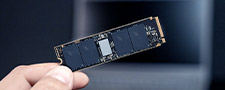
• NVMe (M.2) hard disks: Prioritize U-Reach PE series (e.g., PE-J21008 with 1-to-20 channels) or 1-to-7 high-speed models, which support PCIe/SATA dual protocols and offer stronger compatibility;
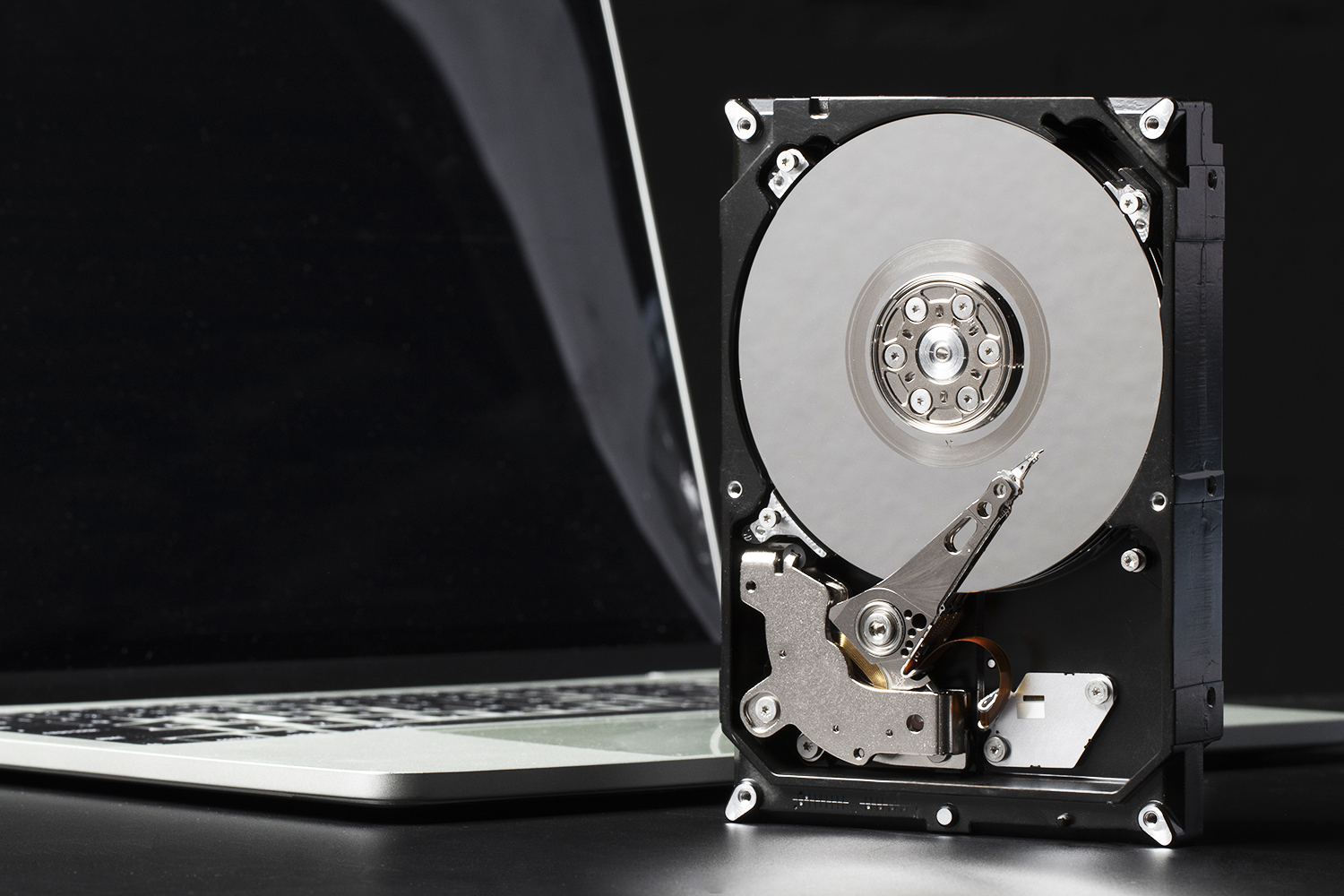
• SATA hard disks: Select 1-to-7 SATA-specific models with a copy speed of 30GB per minute, suitable for small to medium batch copying;
• Mixed interface requirements: Use integrated models with both SATA and M.2 interfaces. One device can adapt to multiple types of hard disks without switching tools.
2. Master Disk Preparation: Ensuring System Integrity and Compatibility
The master disk is the foundation for batch copying. It is necessary to complete system installation, configuration, and optimization in advance. Key steps are as follows:
• System installation: Install the target Windows version (such as Win10/11) on a blank hard disk (master disk) and complete driver adaptation (it is recommended to install a universal driver package to adapt to different hardware models);
• System optimization: Disable automatic updates, delete redundant software, clean up temporary files, and pre-configure network settings and account permissions if uniform configuration is required;
• Special handling: If the master disk has BitLocker encryption enabled or uses a special partitioning method, retain the encrypted state and select the "Full Disk Copy" mode during subsequent copying; for unencrypted regular systems, no additional settings are needed, but ensure the integrity of hidden partitions (such as the EFI boot partition).
3. Target Disk and Environment Inspection
• Target disk requirements: Capacity must be ≥ the used capacity of the master disk (consistent capacity is recommended), the format must match the master disk (NTFS is the main format, supporting GPT/MBR partitioning), and ensure there are no physical bad sectors (the duplicator's "Read-Only Scan" function can be used for detection in advance);
• Environment guarantee: Connect to a stable power supply, and it is recommended to use a UPS (Uninterruptible Power Supply) to avoid data loss caused by voltage fluctuations or sudden power outages common in Southeast Asia; maintain a dry and well-ventilated operating environment to prevent dust from affecting interface contact.
II. Core Operation Process: Offline Batch Copy Steps
U-Reach duplicators support fully offline operation without connecting to a computer. Batch copying can be completed in three steps: "Insert Disks - Set Up - Start". The core process is applicable to most models.
1. Disk Connection: Correct Deployment of Master Disk and Target Disks
• Operation before power-on: Insert the prepared master disk into the duplicator's "Master Disk Port" (usually marked as "Port 1" or "Source"), and insert blank target disks into the remaining "Slave Disk Ports" (Port 2 and beyond, supporting hot-swapping) one by one;
• Notes: Ensure the interfaces are firmly inserted during installation to avoid poor contact due to looseness; for NVMe hard disks, confirm protocol compatibility (AHCI/NVMe), which the duplicator can automatically identify without manual switching.
2. Copy Mode Setting: Select "Quick Copy" or "Full Disk Copy" as Needed
After powering on, operate through the duplicator's display screen. The core setting focuses on the "Copy Mode", which needs to be selected according to the master disk status:
• Regular scenarios (unencrypted, normal partitioning): Select "Quick Copy" (full menu name "System and All Data Areas"). The duplicator will intelligently analyze the master disk's data sectors and only copy data-containing areas (including hidden boot partitions), skipping blank sectors to greatly improve efficiency. For example, a 30GB Windows system only requires copying 30GB of data instead of the full disk capacity;
• Special scenarios (encrypted/special partitioning): Select "Full Disk Copy" to copy from the first sector to the last sector of the master disk, including blank sectors. Suitable for BitLocker-encrypted systems or hidden partitions not recorded in the partition table;
• Supplementary settings: CRC verification (a core guarantee for data integrity) is enabled by default and does not need to be manually turned off; if subsequent traceability is required, the "LOG Report Generation" function can be enabled to automatically record information such as the master disk's SN, copy time, and verification results.
3. Start Copying: Batch Execution and Status Monitoring
• Start operation: After confirming the settings are correct, press the duplicator's "OK" button to start copying;
• Status check: Real-time monitor the copy progress through the display screen, including the amount of copied data, remaining time, and slave disk detection status (if a slave disk is abnormal, it will be marked and skipped without affecting the overall progress);
• Cycle operation: After completing a batch of copying, directly pull out the completed target disks, insert new blank disks, and press the "OK" button to start the next batch without restarting the device, improving continuous operation efficiency.
III. Key Settings: Core Points to Avoid Common Problems
Considering the particularity of Windows system copying, focus on boot compatibility, verification mechanisms, and power protection to avoid issues such as failure to boot and blue screens.
1. Boot Mode Adaptation: UEFI and Legacy Compatibility
Windows system startup relies on UEFI or Legacy boot. The duplicator can automatically copy the boot partition, but note the following:
• Master disk with UEFI boot (GPT partitioning): The target disk must retain the GPT partition format. After copying, no additional boot settings are needed, and it can be booted directly;
• Master disk with Legacy boot (MBR partitioning): Ensure the target disk is not mistakenly formatted as GPT. If boot failure occurs, re-copy using the duplicator's "Full Disk Copy" mode to overwrite the partition table information.
2. Verification Mechanism: Ensure Data Integrity
U-Reach duplicators enable real-time CRC verification by default. During copying, they automatically compare data between the master disk and slave disks. If verification inconsistency occurs, the slave disk will be marked as abnormal and writing to it will stop. Recommendations:
• Before batch copying, perform a test copy with the master disk and one target disk. After completion, verify the system is normal before batch execution;
• For precision scenarios (such as industrial control computers), "CRC + Comparison" can be enabled to further reduce the risk of data errors.
3. Power Supply and Hot-Swapping Specifications
• Power supply guarantee: Due to unstable power supply in Southeast Asia, ensure the duplicator is connected to a stable power supply. Using a UPS can handle voltage drops or short-term power outages, avoiding hard disk damage caused by copy interruptions;
• Hot-swapping restrictions: Hot-swapping of target disks is only supported after copying is completed or before copying starts. Do not plug or unplug the master disk during copying, otherwise the entire batch of copying will fail.
IV. Post-Copy Verification and Maintenance: Ensure System Usability and Long-Term Device Performance
After copying, verify the system and perform daily maintenance on the duplicator to ensure stable subsequent batch operations.
1. System Verification: 3 Core Checks
• Boot test: Randomly select 3-5 copied target disks, connect them to a computer, and check if they can normally enter the Windows system without blue screens, missing drivers, or other issues;
• Function verification: Check if network configurations, pre-installed software, and hidden partitions are intact and consistent with the master disk;
• Abnormal handling: If failure to boot occurs, first check if the target disk has sufficient capacity and if the boot mode matches. The abnormal hard disk can be re-copied using the "Full Disk Copy" mode.